Manual

Last updated: January 1, 2026

Installation Guide

Step 1
Step 2
Step 3

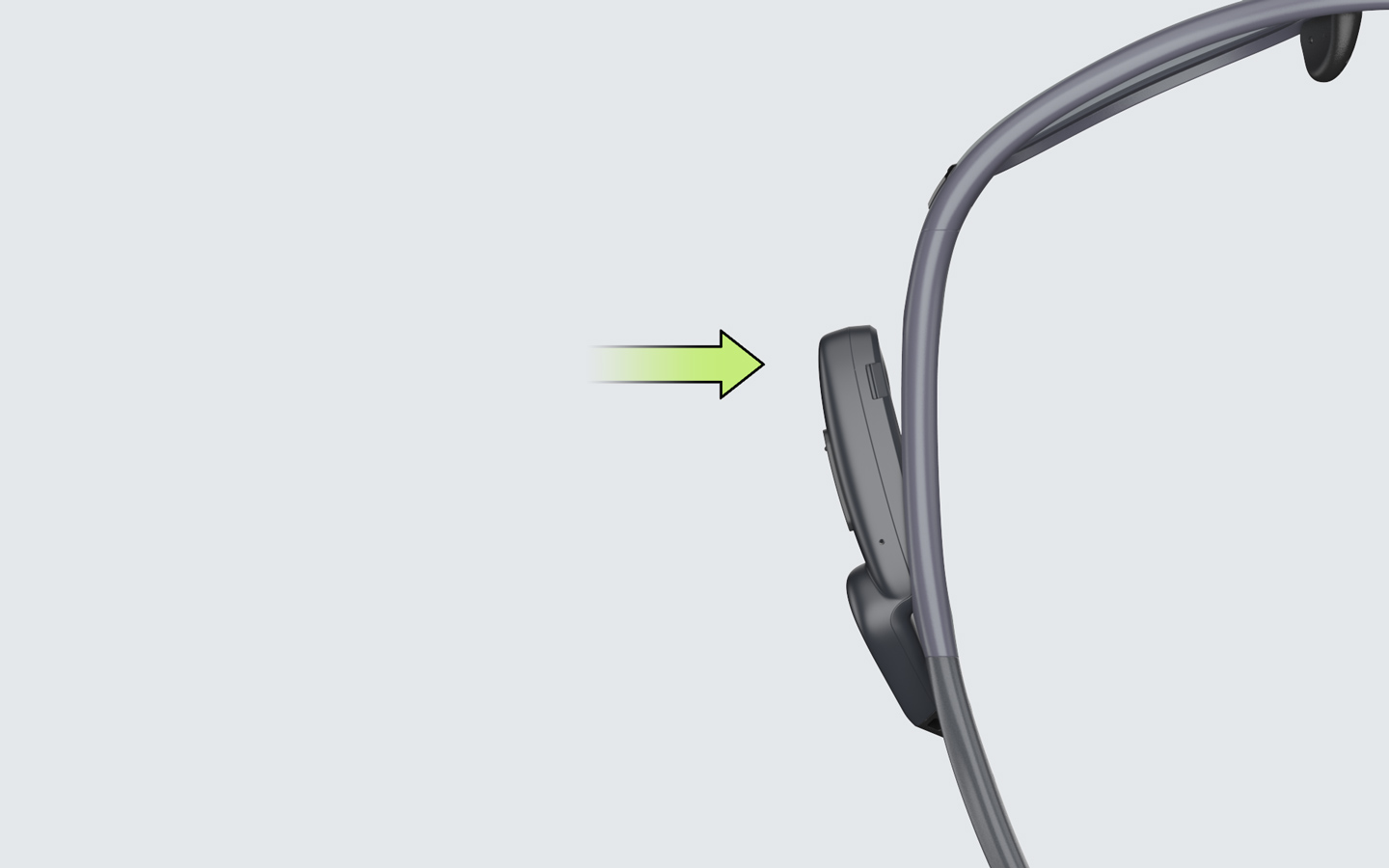
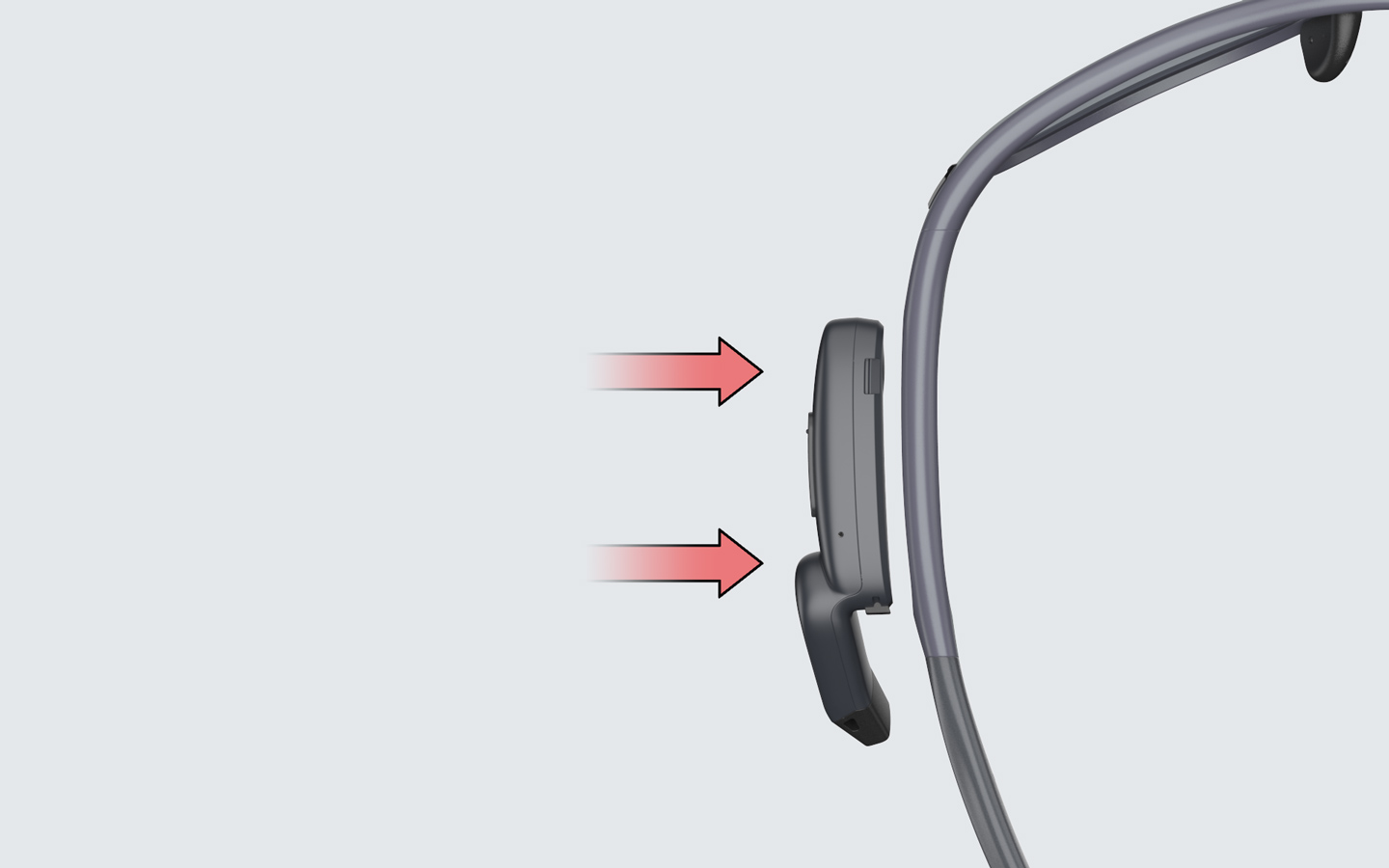
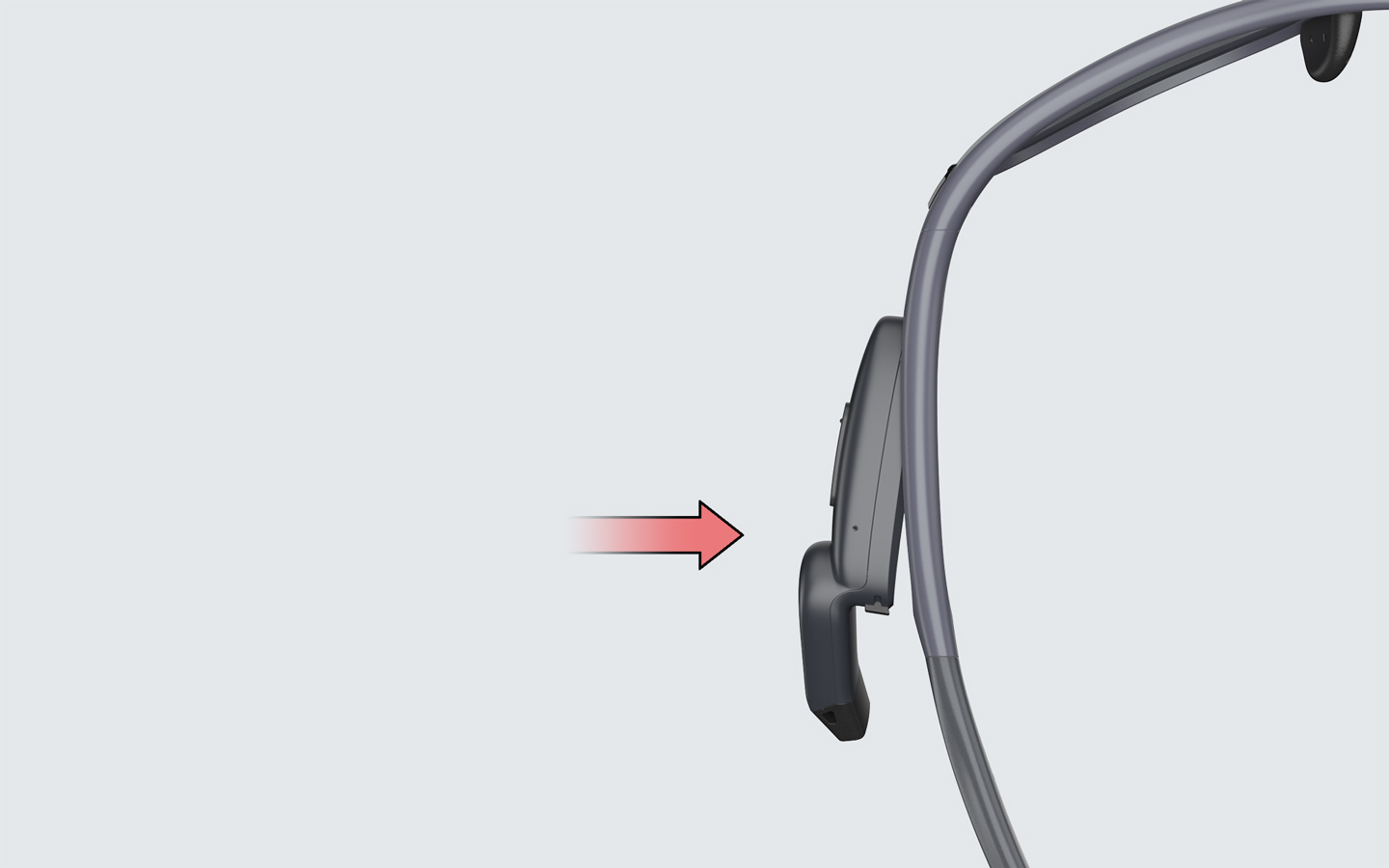
To install the stereo modules, push from the front side. Pushing parallel or pressing from the back will not work.
Step 1
Step 2
Step 3

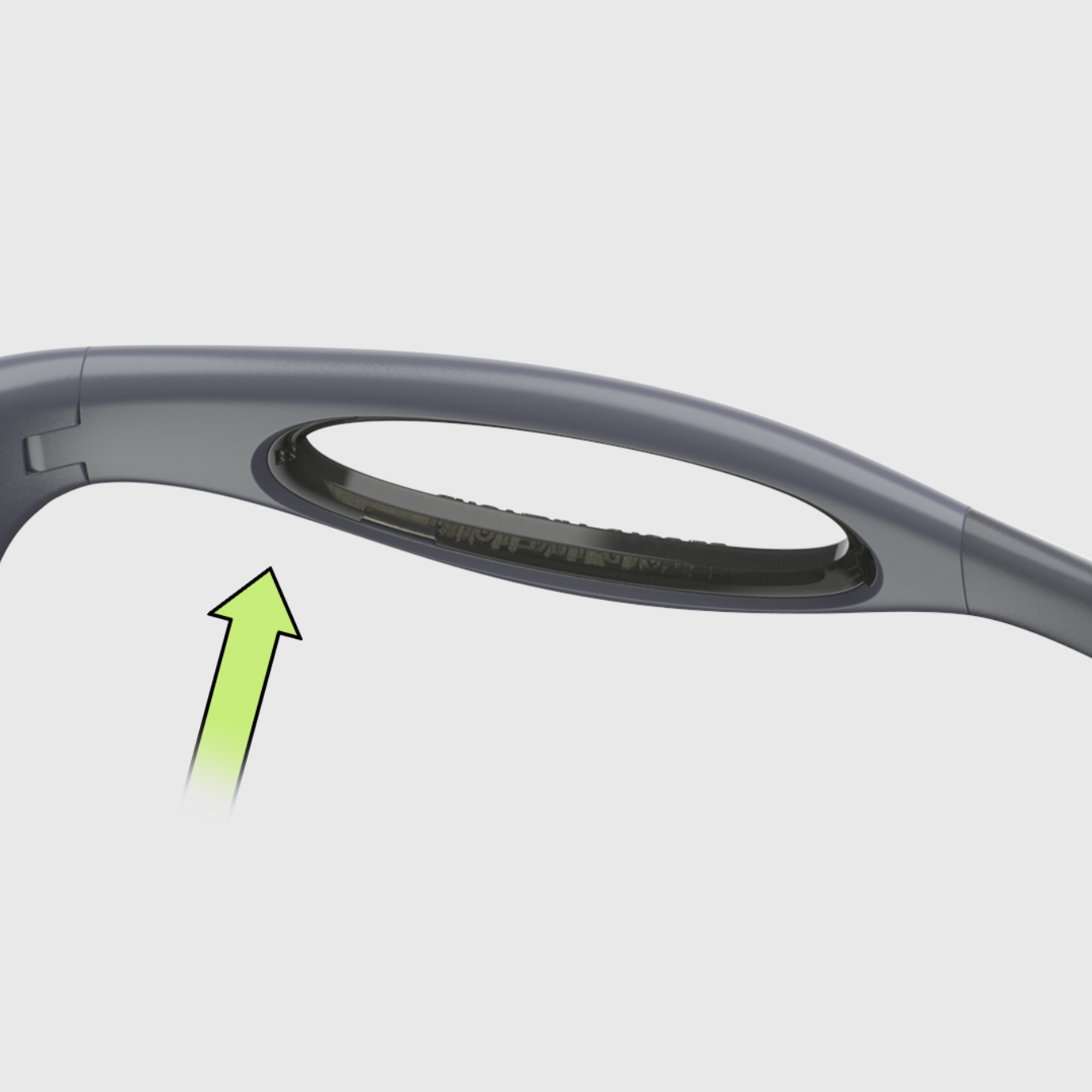
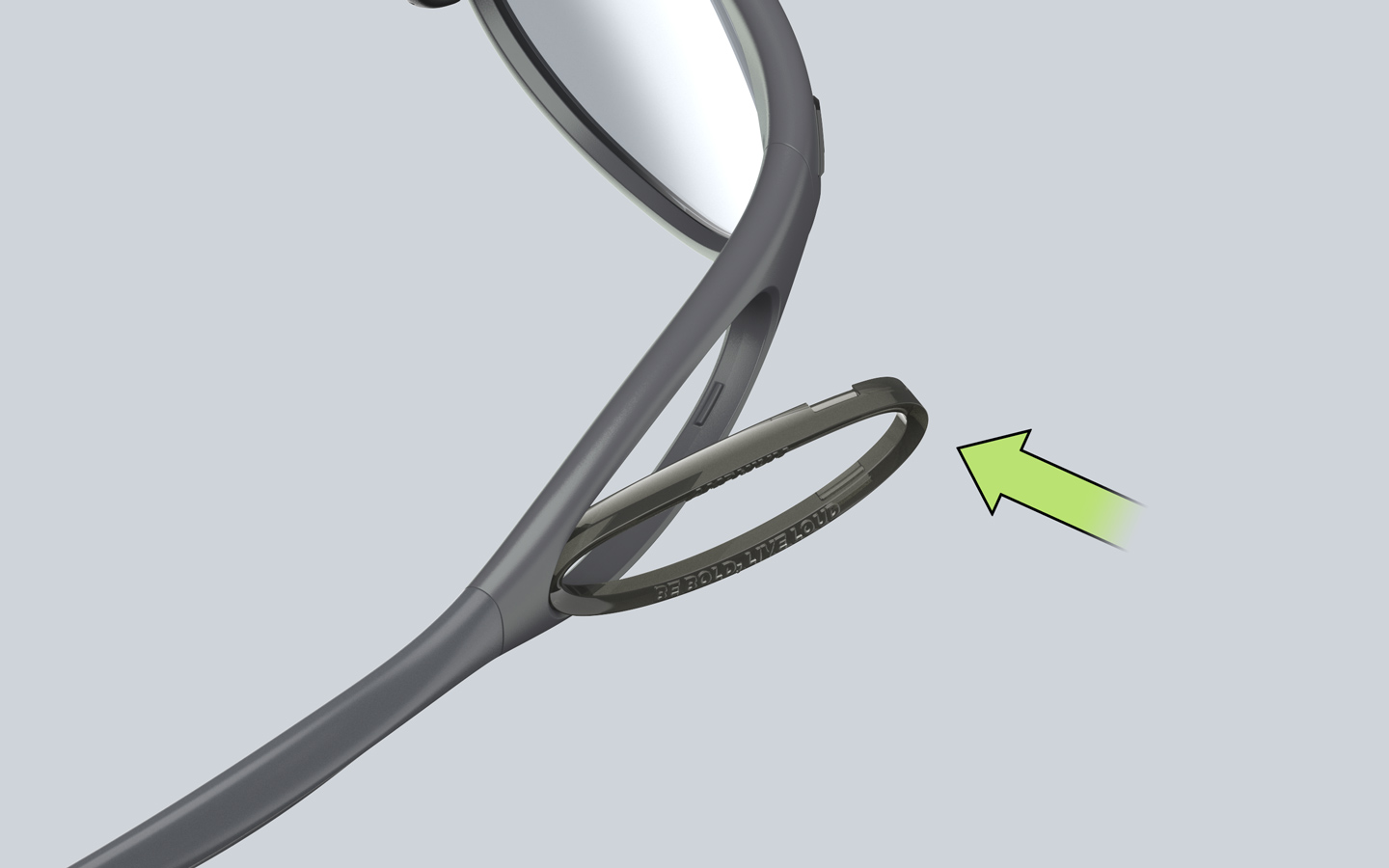
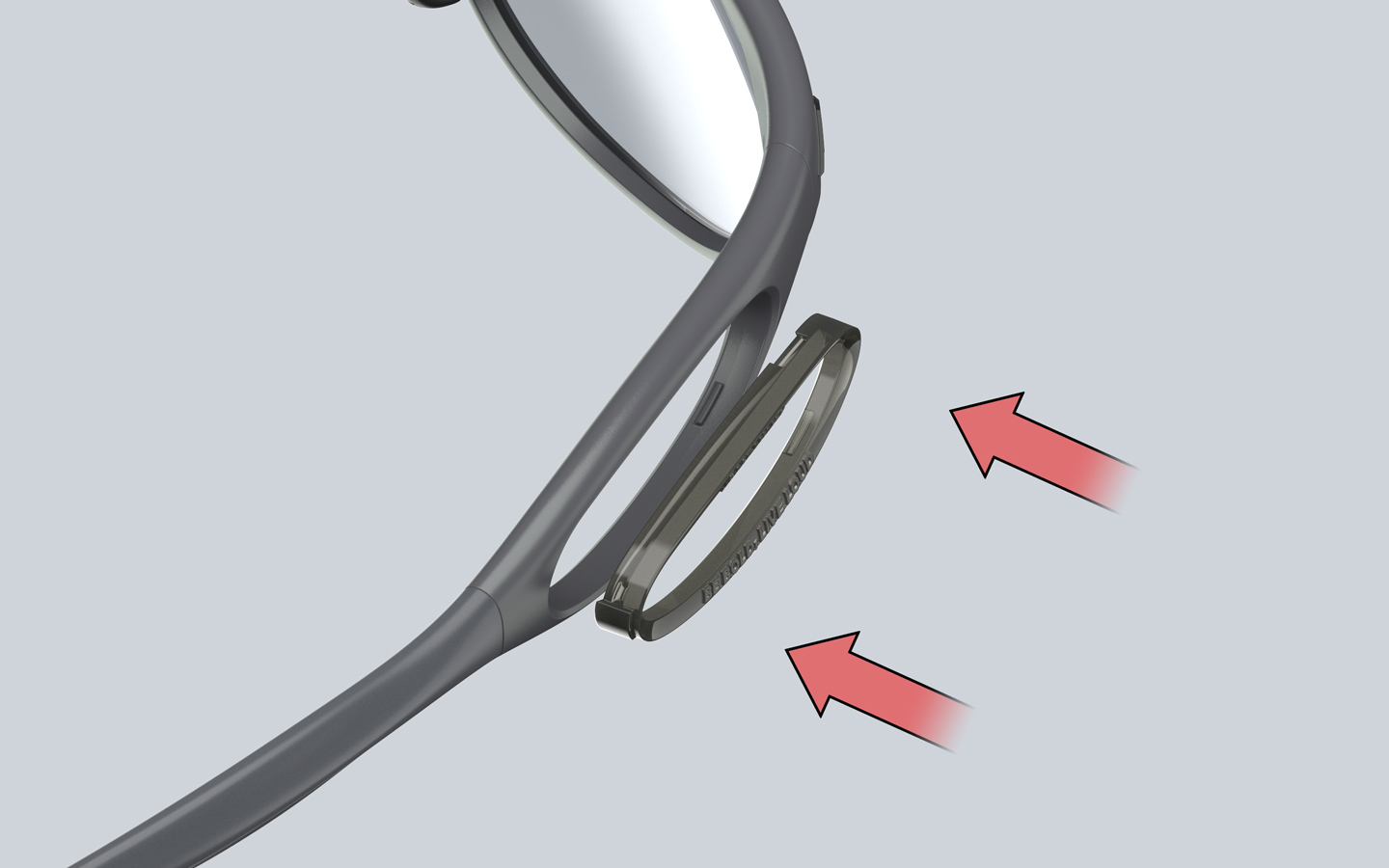
To install the decoration ring, push from the front side. Pushing parallel or pressing from the back will not work.
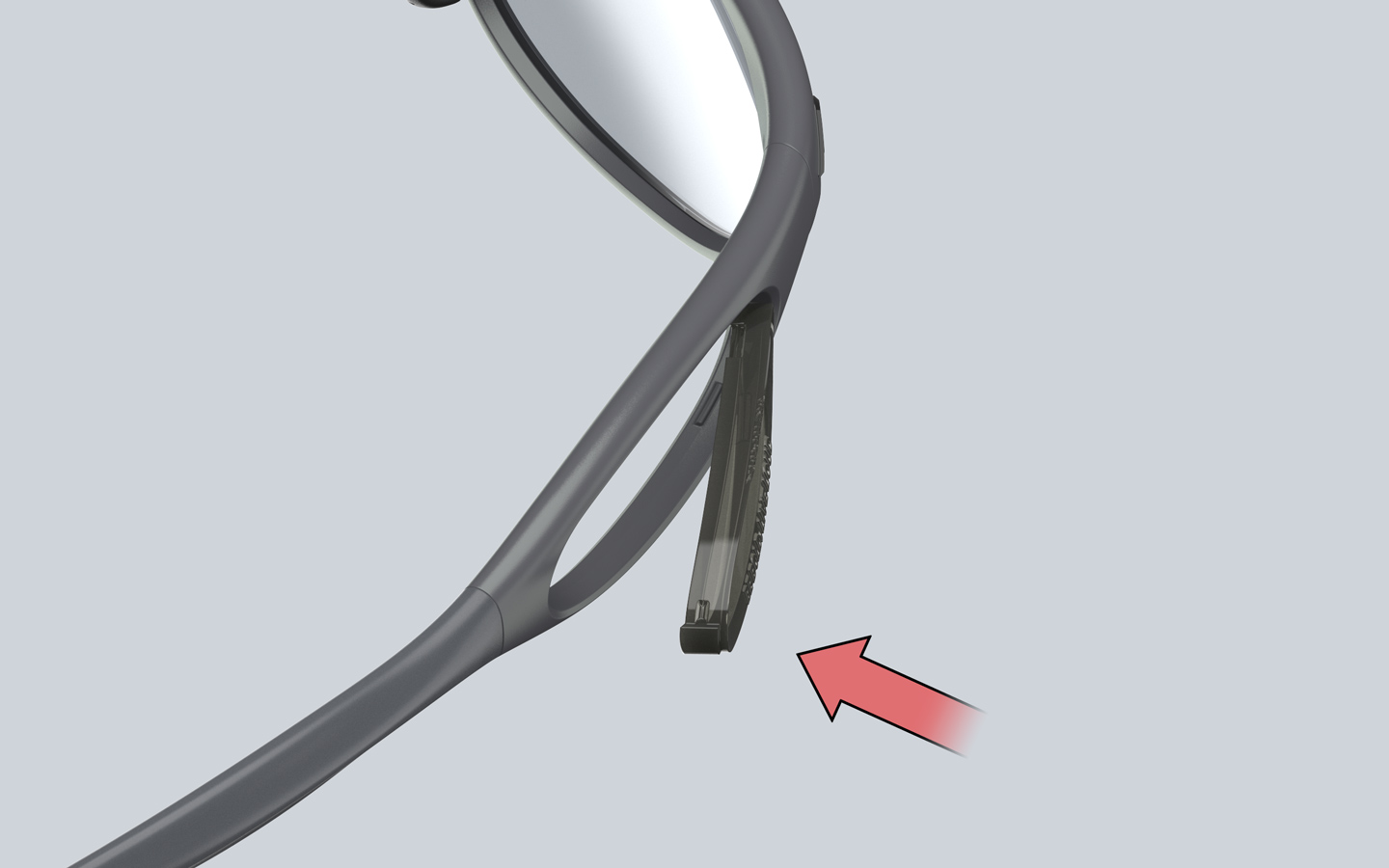
Step 1
Step 2

To remove them, push from the front side. Pushing parallel or pressing from the back will not work.
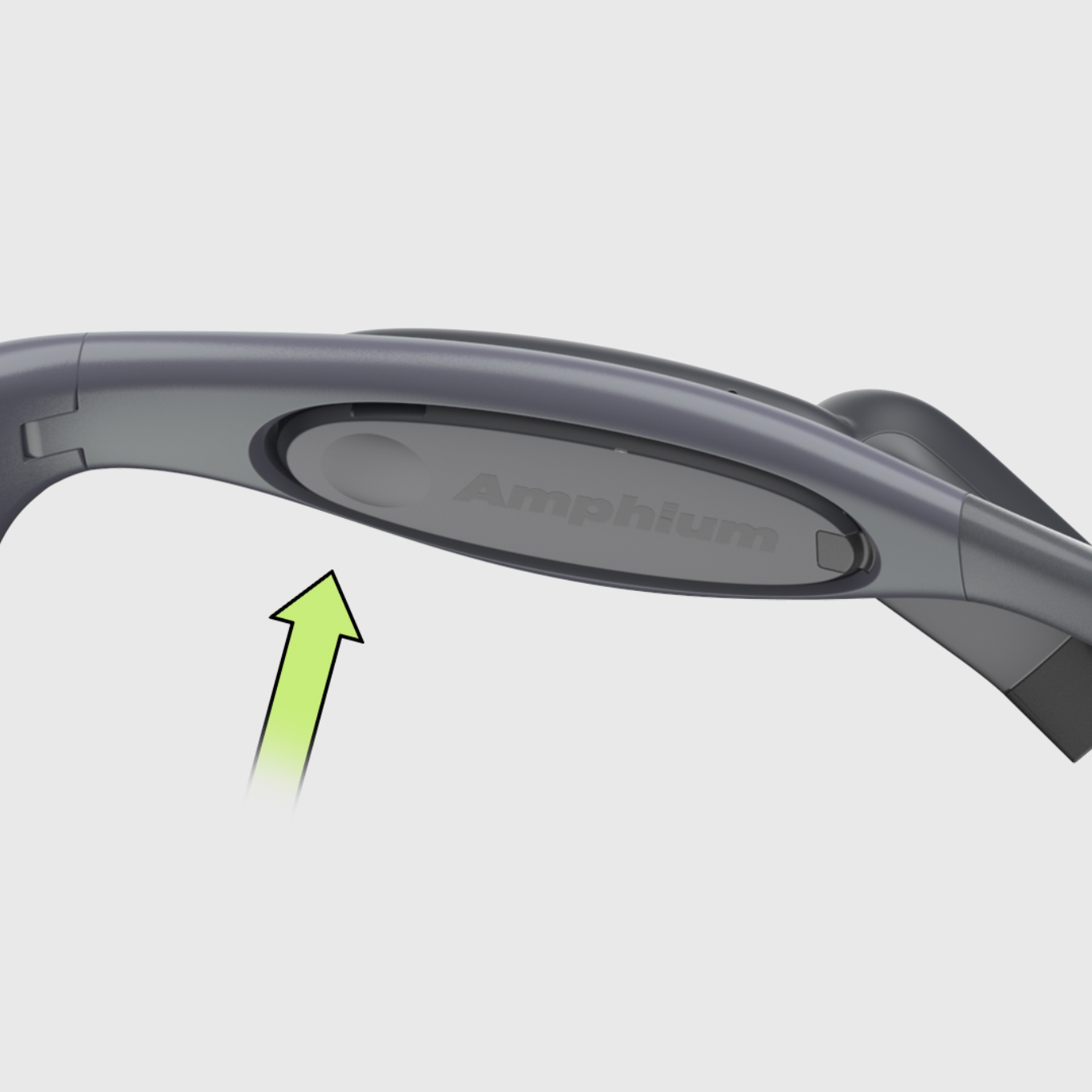
Button Operations
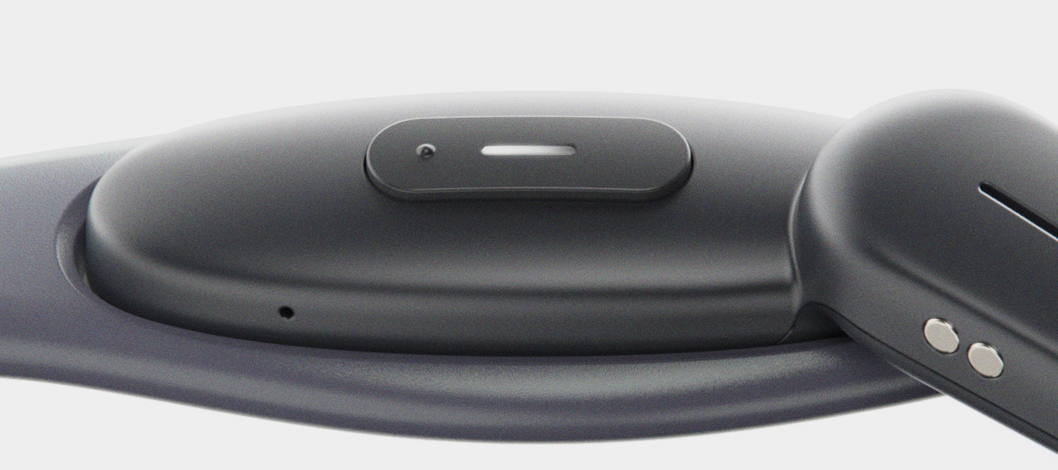
Button Overview

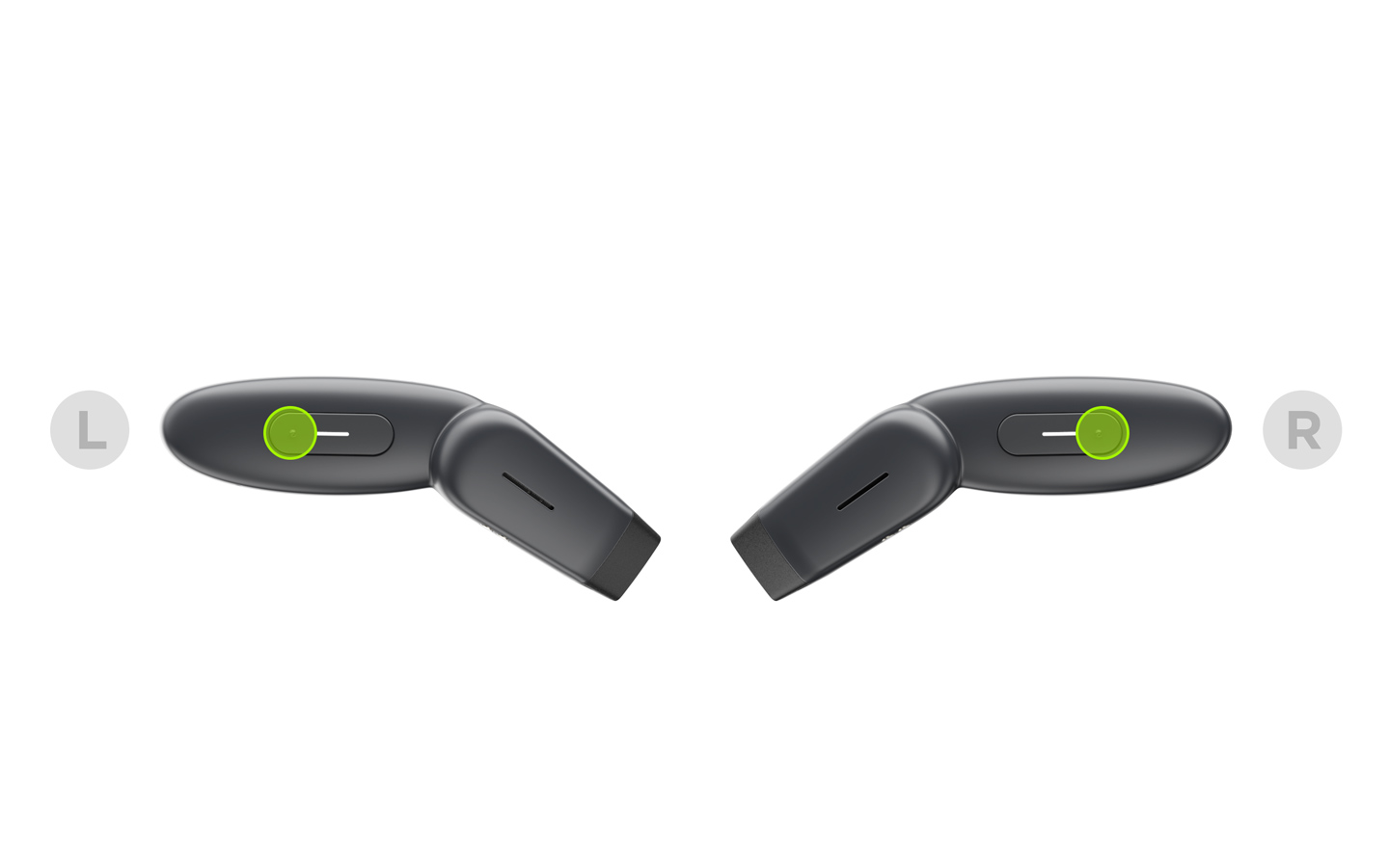
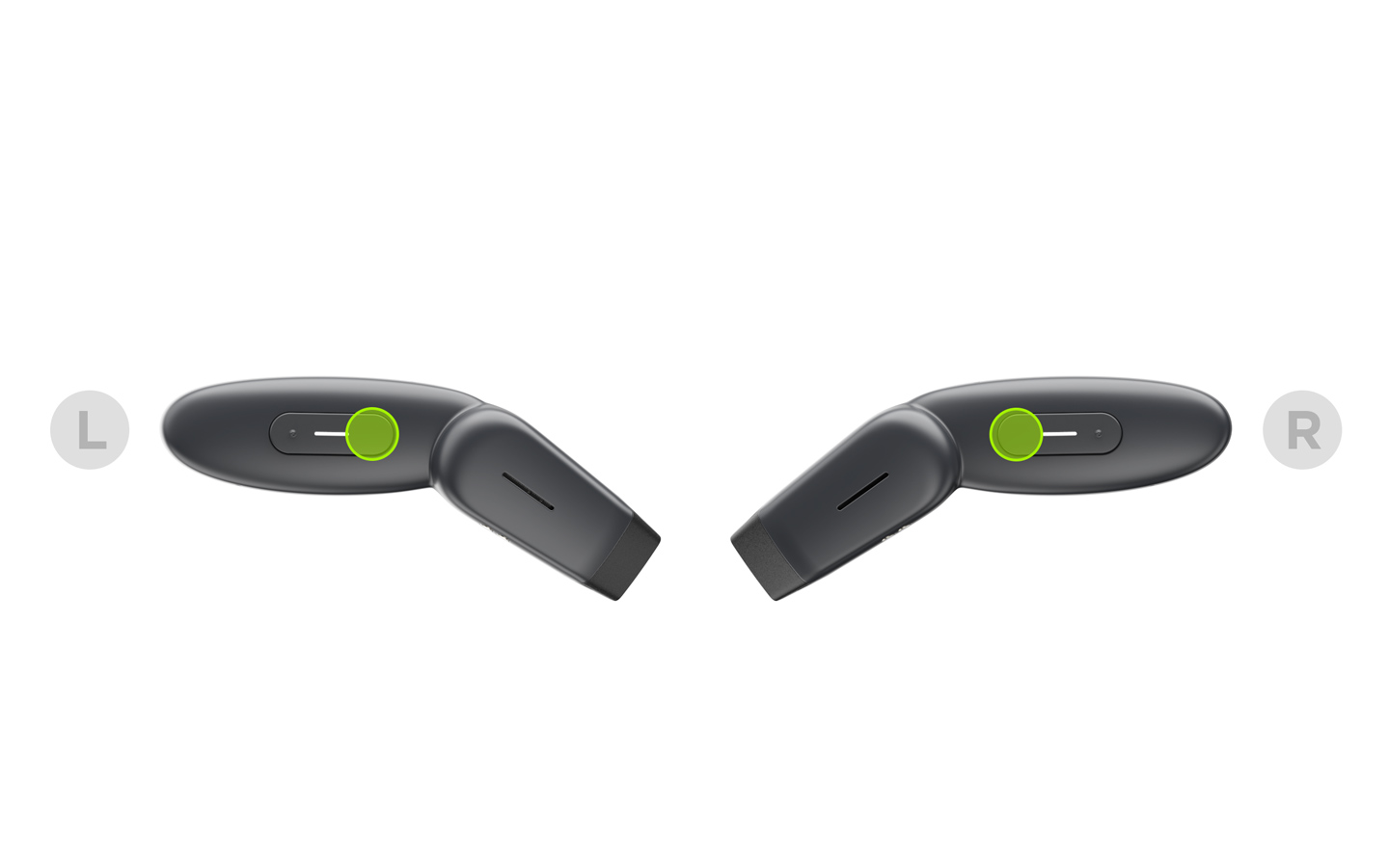
Each side has two buttons, front and rear. For reliable response and tactile feedback during sports, we use physical buttons. The front button has a raised dot. You need to remember the front and rear operations, and it becomes very intuitive once you get used to it.

Power On/Off

Power On/Off

Long press both sides to power on. Long press either side to power off.

Volume Controls

Volume Controls

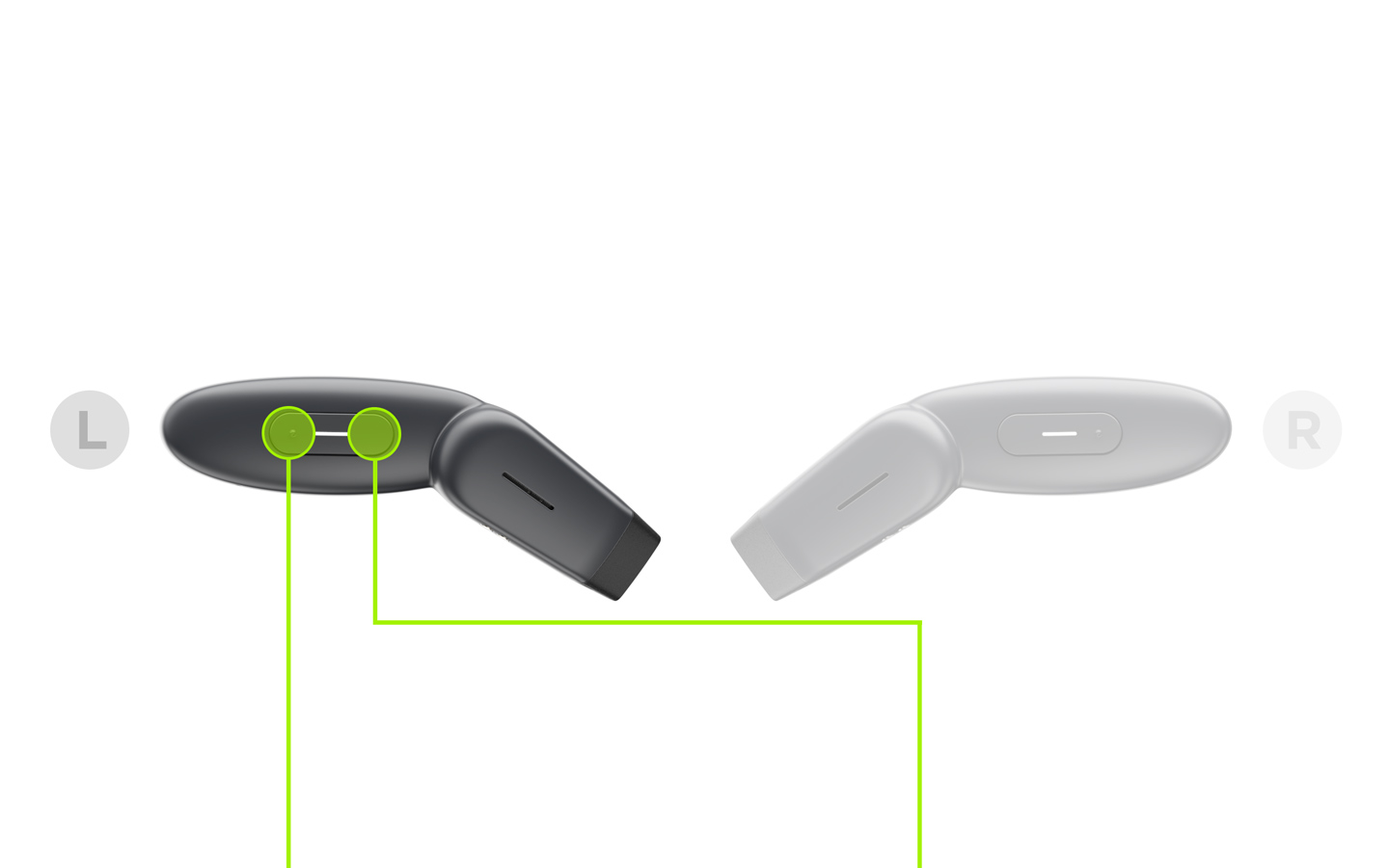
Front Button:

Press to increase volume.

Rear Button:

Press to decrease volume.

Volume controls are only available on the left side.

Music Control & Siri

Phone Control

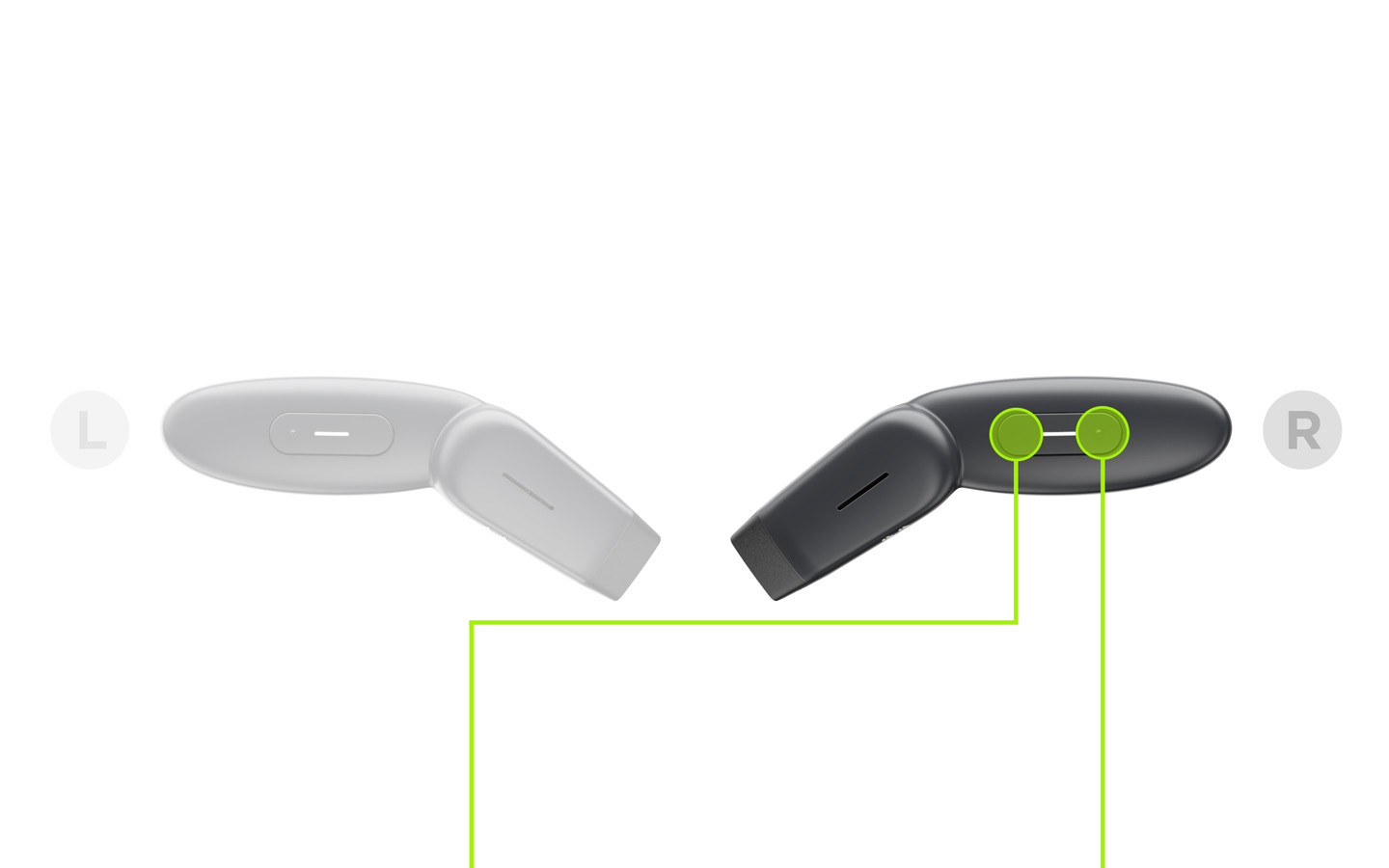
Rear Button:

Press to activate Siri or your phone's voice/AI assistant.

Front Button:

Press to play/pause.

Double-press to skip forward.

Triple-press to skip back.

These functions are only available on the right side.

Quick Disconnect & Power Off

Quick Disconnect

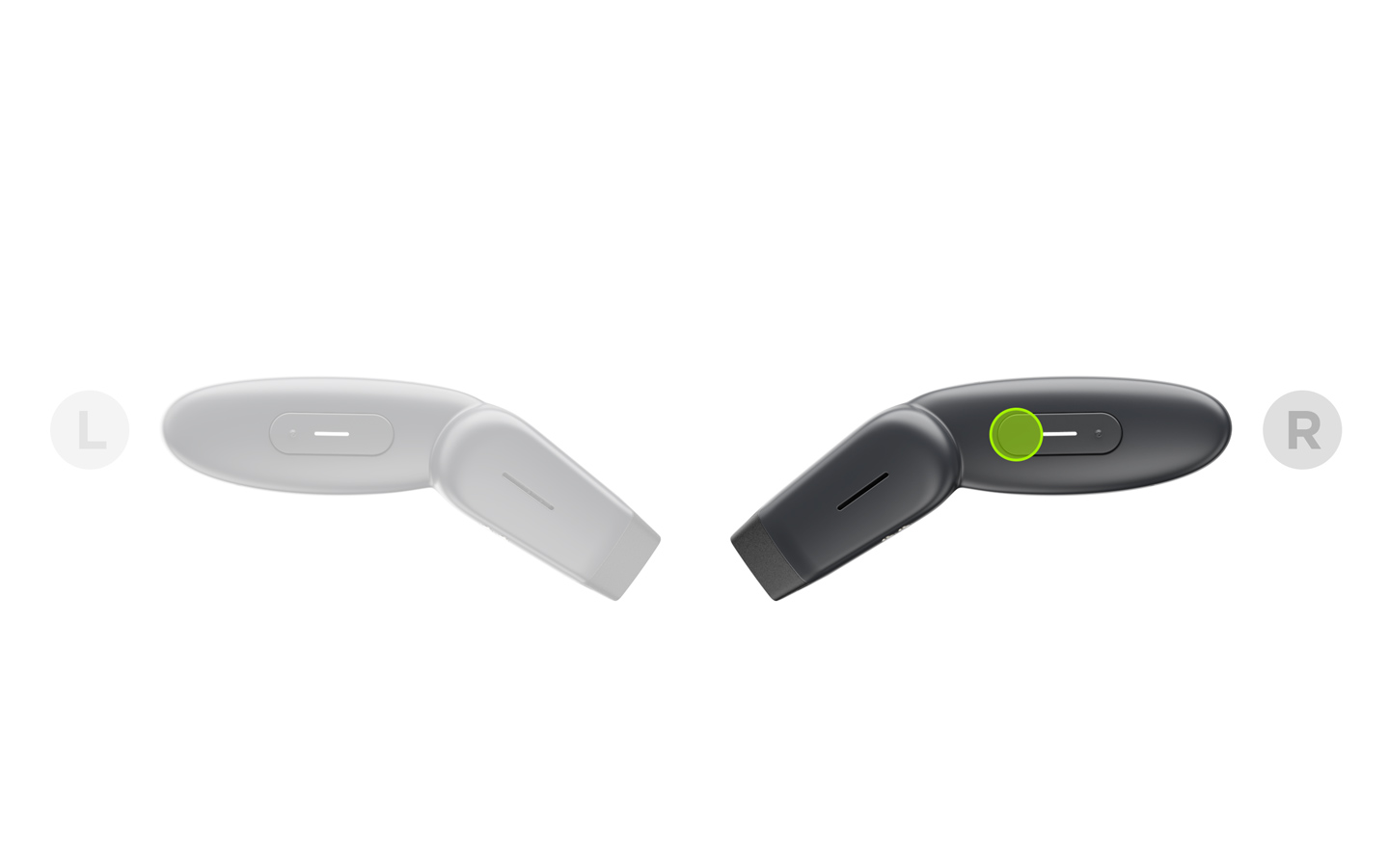
Double-press the rear button of the right side to disconnect, and double-press again to reconnect. The glasses will turn off automatically 3 minutes after being disconnected from the phone, which makes it convenient to use as a quick power-off feature.

Push-to-Talk

Push-to-Talk

Download Zello and open the "Add Hardware Button" page. Turn on the glasses — they will appear in the list as "PTT-Z01". Hold the rear button (on either side) to talk, and release to send.

Zello

You need to download Zello on your iPhone or Android phone to use the Push-to-Talk feature. You're not limited to talking between the glasses—you can talk to any phone or device that uses Zello. Download on App Store or Download on Google Play.

Charging

The product comes with a magnetic charging cable. A full charge takes 1-2 hours. To charge, connect the magnetic cable to your USB-C charging cable and charger.

Charging

LED Indicator

Product in Use

White LED on for 1.2s
Power on
Red LED on for 1.2s
Power off
Red/white alternating blink
Pairing mode
Both LEDs blinking red & white
Left & right pairing reset
White LED blinking twice
Connected
Red LED blinking twice
Disconnected
Red LED blinking three times
Low battery

While Charging

Red LED stays on
Charging in progress
White LED stays on
Fully charged
White LED goes off 5 min after fully charged
End of charge

Care & Maintenance
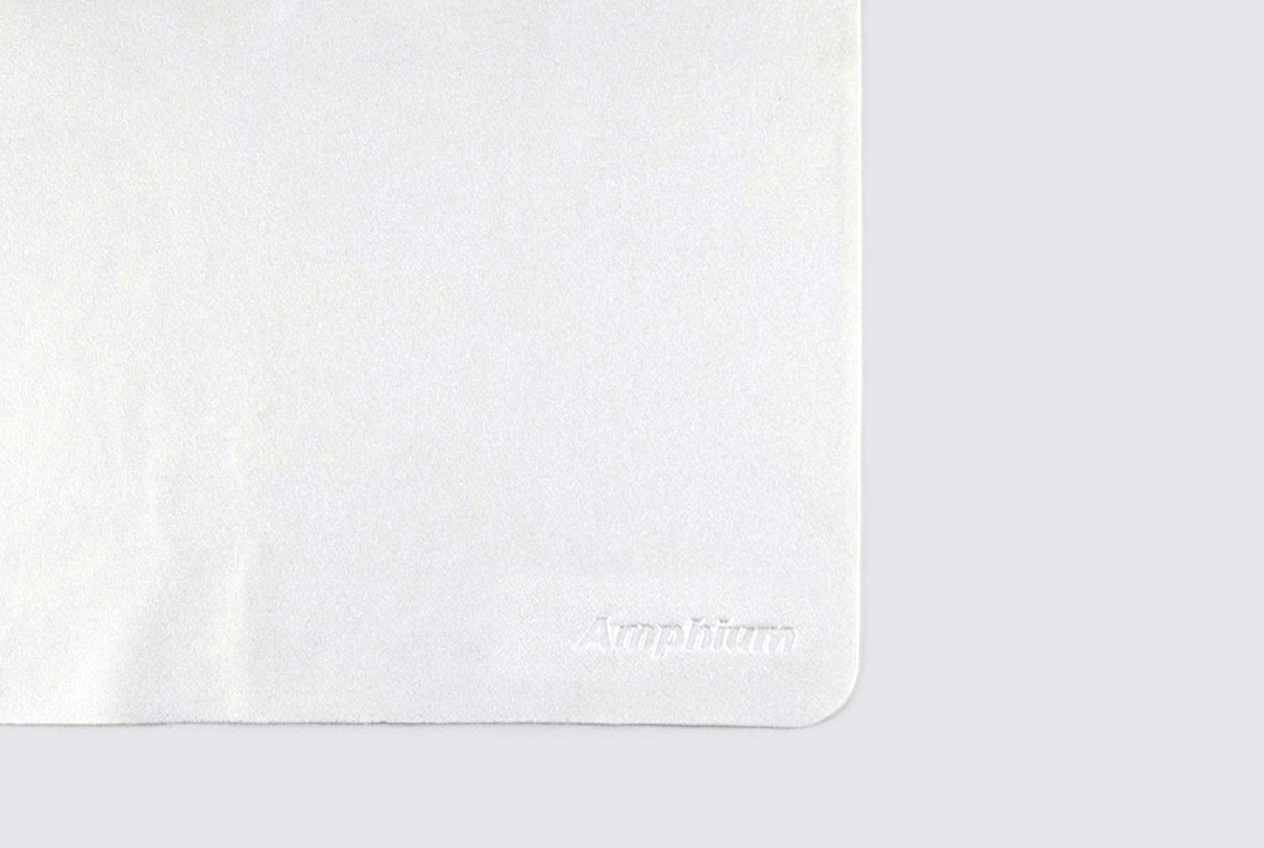
Care Instructions Care Instructions

Keep your Amphium Stereo glasses in top condition. Clean the lenses regularly with the provided microfiber cloth.

Store your glasses in the included case when not in use to protect them from scratches and damage.